SharePoint search uses “HitHighlightedSummary “column for highlighting the search text in result summary. Querying the HitHighlightedSummary column using FullTextSqlQuery returns the data that contains hit highlights that are surrounded with tags like <c0>…</c0>
This hit-highlight can be easily customized in OOB search core result web part by customizing the xsl. If it is a custom web part and using FullTextSqlQuery then we need to write piece of code to format hit-highlights.
public static string FormatHitHighlightedSummary(object text, string highlightedTag)
{
return Regex.Replace(Regex.Replace(text.ToString(), @"<c\d>", string.Format("<{0}>", highlightedTag), RegexOptions.IgnoreCase), @"</c\d>", string.Format("</{0}>", highlightedTag), RegexOptions.IgnoreCase);
}
While binding the Highlighted Summary, use the above created method as shown below
<%# FormatHitHighlightedSummary(Eval("HitHighlightedSummary"), "i")%>
I’ve used “Italics - <i>” to Highlight the search text… Use this method to format highlighted summary depends on your requirement.
Thursday, July 30, 2009

Wednesday, July 29, 2009
SharePoint Custom Page Layout – Web Parts getting added twice
I have used SharePoint Designer to create a custom page layout and added few custom web parts (drag-drop using SPD).
The Page Layout has been deployed using a Feature. After deployment, The Page Layout has web parts as expected and the issue is, when a page is created using the custom Page Layout, each web part is added twice.
I have tried different approaches to remove the web parts unsuccessfully. Finally removed all web parts (which I have added using SharePoint Designer) and used “AllUsersWebPart” element to add custom web parts in Feature. It worked like a charm!
The Page Layout has been deployed using a Feature. After deployment, The Page Layout has web parts as expected and the issue is, when a page is created using the custom Page Layout, each web part is added twice.
I have tried different approaches to remove the web parts unsuccessfully. Finally removed all web parts (which I have added using SharePoint Designer) and used “AllUsersWebPart” element to add custom web parts in Feature. It worked like a charm!
Monday, July 27, 2009
Useful Tools for SharePoint
The following are the tools which are very frequently used in SharePoint Projects.
SharePoint Designer
SharePoint Designer is a WYSIWYG HTML editor and web design application from Microsoft exclusively for SharePoint sites.
Download link: http://www.microsoft.com/DOWNLOADS/details.aspx?FamilyID=baa3ad86-bfc1-4bd4-9812-d9e710d44f42&displaylang=en
U2U CAML Builder
A tool for creating and executing CAML queries
Download link: http://www.u2u.be/res/Tools/CamlQueryBuilder.aspx
SP Dispose Check
A tool for writing safe code using SharePoint Object Model to prevent memory leaks
Download link: http://code.msdn.microsoft.com/SPDisposeCheck
WSPBuilder
A tool for creating SharePoint Solution Package (WSP) WSS 3.0 & MOSS 2007
Download link: http://www.codeplex.com/wspbuilder
STSDEV
A tool for creating easy deployable solution
Download link: http://www.codeplex.com/stsdev
SharePoint Manager 2007
It a SharePoint object model explorer tool, enables you to browse every site on the local farm and view every property.
Download link: http://www.codeplex.com/spm
WSS/MOSS Log file reader
A tool to View, search and filter SharePoint ULS log files directly from within Central Administration.
Download link: http://www.codeplex.com/wssmosslogfilereader
SharePoint Logging Spy
A tool to allow real time diagnostics of multiple servers in a SharePoint
Download link: http://www.codeplex.com/sharepointloggingspy
SharePoint Test Data Population Tool
A tool for capacity planning and performance testing that populates data for testing SharePoint deployments
Download link: http://www.codeplex.com/sptdatapop
AD Explorer
It is an advanced Active Directory (AD) viewer and editor which allows manipulation of AD objects
Download link: http://technet.microsoft.com/en-us/sysinternals/bb963907.aspx
IE Developer Toolbar
A tool that aims to aid in design and debugging of web pages
Download link: http://www.microsoft.com/downloads/details.aspx?FamilyId=E59C3964-672D-4511-BB3E-2D5E1DB91038&displaylang=en
Note: “Internet Explorer 8” includes the features of IE Developer Toolbar built in, instead of a separate product; known as Developer Tools rather than Developer Toolbar.
Reflector
A tool for disassemble Assemblies
Download link: http://www.red-gate.com/products/reflector
GhostDoc
A tool that helps developers writing XML documentation comments
Download link: http://www.roland-weigelt.de/ghostdoc
Resource Refactoring
A tool to extract hard coded strings from the code to resource files
Download link: http://www.codeplex.com/ResourceRefactoring
Fiddler
It is a Web Debugging Proxy which logs all HTTP(S) traffic between your computer and the Internet.
Download link: http://www.fiddlertool.com/
SharePoint Designer
SharePoint Designer is a WYSIWYG HTML editor and web design application from Microsoft exclusively for SharePoint sites.
Download link: http://www.microsoft.com/DOWNLOADS/details.aspx?FamilyID=baa3ad86-bfc1-4bd4-9812-d9e710d44f42&displaylang=en
U2U CAML Builder
A tool for creating and executing CAML queries
Download link: http://www.u2u.be/res/Tools/CamlQueryBuilder.aspx
SP Dispose Check
A tool for writing safe code using SharePoint Object Model to prevent memory leaks
Download link: http://code.msdn.microsoft.com/SPDisposeCheck
WSPBuilder
A tool for creating SharePoint Solution Package (WSP) WSS 3.0 & MOSS 2007
Download link: http://www.codeplex.com/wspbuilder
STSDEV
A tool for creating easy deployable solution
Download link: http://www.codeplex.com/stsdev
SharePoint Manager 2007
It a SharePoint object model explorer tool, enables you to browse every site on the local farm and view every property.
Download link: http://www.codeplex.com/spm
WSS/MOSS Log file reader
A tool to View, search and filter SharePoint ULS log files directly from within Central Administration.
Download link: http://www.codeplex.com/wssmosslogfilereader
SharePoint Logging Spy
A tool to allow real time diagnostics of multiple servers in a SharePoint
Download link: http://www.codeplex.com/sharepointloggingspy
SharePoint Test Data Population Tool
A tool for capacity planning and performance testing that populates data for testing SharePoint deployments
Download link: http://www.codeplex.com/sptdatapop
AD Explorer
It is an advanced Active Directory (AD) viewer and editor which allows manipulation of AD objects
Download link: http://technet.microsoft.com/en-us/sysinternals/bb963907.aspx
IE Developer Toolbar
A tool that aims to aid in design and debugging of web pages
Download link: http://www.microsoft.com/downloads/details.aspx?FamilyId=E59C3964-672D-4511-BB3E-2D5E1DB91038&displaylang=en
Note: “Internet Explorer 8” includes the features of IE Developer Toolbar built in, instead of a separate product; known as Developer Tools rather than Developer Toolbar.
Reflector
A tool for disassemble Assemblies
Download link: http://www.red-gate.com/products/reflector
GhostDoc
A tool that helps developers writing XML documentation comments
Download link: http://www.roland-weigelt.de/ghostdoc
Resource Refactoring
A tool to extract hard coded strings from the code to resource files
Download link: http://www.codeplex.com/ResourceRefactoring
Fiddler
It is a Web Debugging Proxy which logs all HTTP(S) traffic between your computer and the Internet.
Download link: http://www.fiddlertool.com/
Saturday, March 28, 2009
SharePoint Excel Services – Session Management
A session will be generated whenever a user views a workbook in browser using Excel Services. The session settings for excel services can be configured in SSP. To configure these settings, navigate to SSP site and click on “Edit Excel Services Settings” from “Excel Services Settings” section.

The default session per user is 25. You can even use “STSADM” command line utility to configure the Excel Services Session management setting.
STSADM.EXE –o set-ecssessionmanagement –ssp mysharedservice
-maxsessionperuser 40
This will increase the session per user to 40.

The default session per user is 25. You can even use “STSADM” command line utility to configure the Excel Services Session management setting.
STSADM.EXE –o set-ecssessionmanagement –ssp mysharedservice
-maxsessionperuser 40
This will increase the session per user to 40.
Friday, March 27, 2009
Excel Web Access - Unable to Load Workbook
The Excel web access will throw the following error when the associated workbook is created using Office Excel 2003 / lower.
Error:
The workbook that you selected cannot be opened.
The workbook may be in an unsupported file format, or it may be corrupt.

Use Office Excel 2007 to create the workbook and save it to your library (trusted location) and now the Excel Web Access web part will display the workbook.
Error:
The workbook that you selected cannot be opened.
The workbook may be in an unsupported file format, or it may be corrupt.

Use Office Excel 2007 to create the workbook and save it to your library (trusted location) and now the Excel Web Access web part will display the workbook.
Saturday, February 28, 2009
Site Aggregator Web Part of SharePoint
Site Aggregator is a simple and straight-forward web part, can be used to display sites (specific page in a site) of our choice.
2. Number of tabs to show before more dropdown
Sets the number of tabs that should be rendered before additional items are put in the more dropdown


After adding all the sites, select the “Pending Approval” view to see all the approvals which are pending for the selected site.

The following are the important properties of Site Aggregator WebPart.
Properties of Site Aggregator
1. Number of characters before ellipses
Sets the number of characters that should be rendered in a tab before truncating and showing ellipses
Default value of this property is 30
2. Number of tabs to show before more dropdown
Sets the number of tabs that should be rendered before additional items are put in the more dropdown
Default value of this property is 5
3. URL
This URL fragment will be appended to the site URL when a tab is selected
This URL fragment will be appended to the site URL when a tab is selected
Default value of this property is MyInfo.aspx (_layouts/MyInfo.aspx).
I have used “Site Content and Structure” page (_layouts/sitemanager.aspx) page. This will help managers to easily navigate and review “Pending Approvals” or other task of all sites from a same page.
Add the “Site Aggregator” to your page and set the Target Audience property to Managers or the respective approver group, so that only managers/approvers can see this web part.
I have used “Site Content and Structure” page (_layouts/sitemanager.aspx) page. This will help managers to easily navigate and review “Pending Approvals” or other task of all sites from a same page.
Add the “Site Aggregator” to your page and set the Target Audience property to Managers or the respective approver group, so that only managers/approvers can see this web part.

Use “New Site Tab” from Sites menu to create a new Site Tab.

Set the URL property to “_layouts/sitemanager.aspx”. See the below image for the properties of Site Aggregator.

After adding all the sites, select the “Pending Approval” view to see all the approvals which are pending for the selected site.

Managers / Approvers can manage all approvals or view other details in same page.
Saturday, February 21, 2009
Customizing SharePoint Blog Posts Web Part
Description
The OOTB posts web part displays complete posts in Home Page (default.aspx) of Blog Site. In this post, the Posts web part is customized to display only 250 characters from each post and a “more” link to the actual blog post instead of displaying complete Blog post in Home Page.
Before Customization
The Posts “ListViewWebPart” displays complete posts in home page.

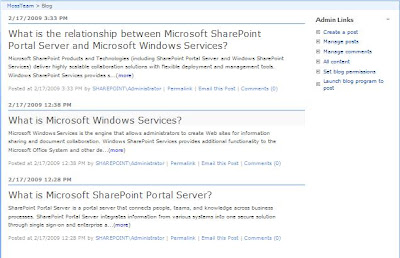
Approach
Below the approach followed to display 250 characters blog post summary.
1) Convert Posts web part to XSD Data View using SharePoint Designer (SPD)
2) customize the XSL to display 250 characters summary and a “more” link to the actual blog post
3) Create a new Web Part from Customized Post web part and use it in other blog site
The following explains in-detail about the approach.
Parameters Generated by SPD


The OOTB posts web part displays complete posts in Home Page (default.aspx) of Blog Site. In this post, the Posts web part is customized to display only 250 characters from each post and a “more” link to the actual blog post instead of displaying complete Blog post in Home Page.
Before Customization
The Posts “ListViewWebPart” displays complete posts in home page.

After Customization
See the below screen, after the customization of Posts Web Part using SharePoint Designer.
See the below screen, after the customization of Posts Web Part using SharePoint Designer.

Approach
Below the approach followed to display 250 characters blog post summary.
1) Convert Posts web part to XSD Data View using SharePoint Designer (SPD)
2) customize the XSL to display 250 characters summary and a “more” link to the actual blog post
3) Create a new Web Part from Customized Post web part and use it in other blog site
The following explains in-detail about the approach.
Creating XSD Data View
Use SharePoint Designer to convert the default list view web part (Posts) to XSD Data View. Open the Blog’s Home Page in your SharePoint Designer. Once the page is opened Right Click the List View Posts web part and select “Convert to XSD Data View”. See the below screen.
Use SharePoint Designer to convert the default list view web part (Posts) to XSD Data View. Open the Blog’s Home Page in your SharePoint Designer. Once the page is opened Right Click the List View Posts web part and select “Convert to XSD Data View”. See the below screen.

Customizing the XSD Data View
The Body column of the Posts list holds the complete summary text. The DataFormWebPart generated by SPD points the list by using the ListID. ListID is nothing but the GUID, which will change server to server. so use ListName instead of ListID to use this web part in blog site of any server.
The Body column of the Posts list holds the complete summary text. The DataFormWebPart generated by SPD points the list by using the ListID. ListID is nothing but the GUID, which will change server to server. so use ListName instead of ListID to use this web part in blog site of any server.
Parameters Generated by SPD

After Change

The “removeHtmlTags” template of XSL used to strip the HTML text from the summary text. See the below screens which shows the XSL customizations.
“removeHtmlTags” Template Definition
“removeHtmlTags” Template Definition

Call “removeHtmlTags” for getting Pure Text
Replace the following section
Replace the following section

by

Now the customizations have been done. Export posts web part and use it in other Blog sites by uploading it to Web Part Gallery.

Reference:
Stripping HTML
http://blog.thekid.me.uk/archive/2007/05/18/stripping-html-tags-when-using-xslt.aspx
Stripping HTML
http://blog.thekid.me.uk/archive/2007/05/18/stripping-html-tags-when-using-xslt.aspx
Subscribe to:
Posts (Atom)


